GUIDE — HOME POSITION
Home Row Position Diagram — Finger Placement, Thumbs, and the F/J Bumps
- Published
- Updated
- Author
- Typing Musou Developer
Home position in typing means your left fingers rest on A S D F and your right fingers on J K L ;, with both index fingers on the bumps of F and J and your thumbs lightly near the Space bar. It is where every finger starts, and where it returns after each key.
This guide uses the keyboard-and-hands diagrams from the Typing Musou Dojo to cover each finger's keys, how to use your thumbs, how to find F and J when there are no bumps, how to fix hands that drift while you type, and what changes on a laptop.
Posture numbers follow Japan's Ministry of Health, Labour and Welfare guideline (a viewing distance of roughly 40 cm or more, and an angle of 90 degrees or more between upper arm and forearm). Details are in Typing Posture and Wrist Position. How long it takes to learn is covered in How to Learn Touch Typing.
ANSWER
What is home position? Finger placement and each finger's keys
Home position is the base position your fingers start from and return to. On the middle row of the keyboard (the home row), your left fingers rest on A S D F and your right fingers on J K L ;. The index fingers sit on F and J, and the thumbs on the Space bar.
Every other key is reached by stretching a finger from this position. Each index finger covers two columns (six keys); every other finger covers one. Pressing each key with the same finger every time is a trait shared by fast typists (Feit et al., 2016), and finding keys without looking requires knowing which finger owns which key. The same study describes touch typing as a system in which each key is assigned to one finger, and each finger has a home position in the middle row that it returns to after pressing a key.
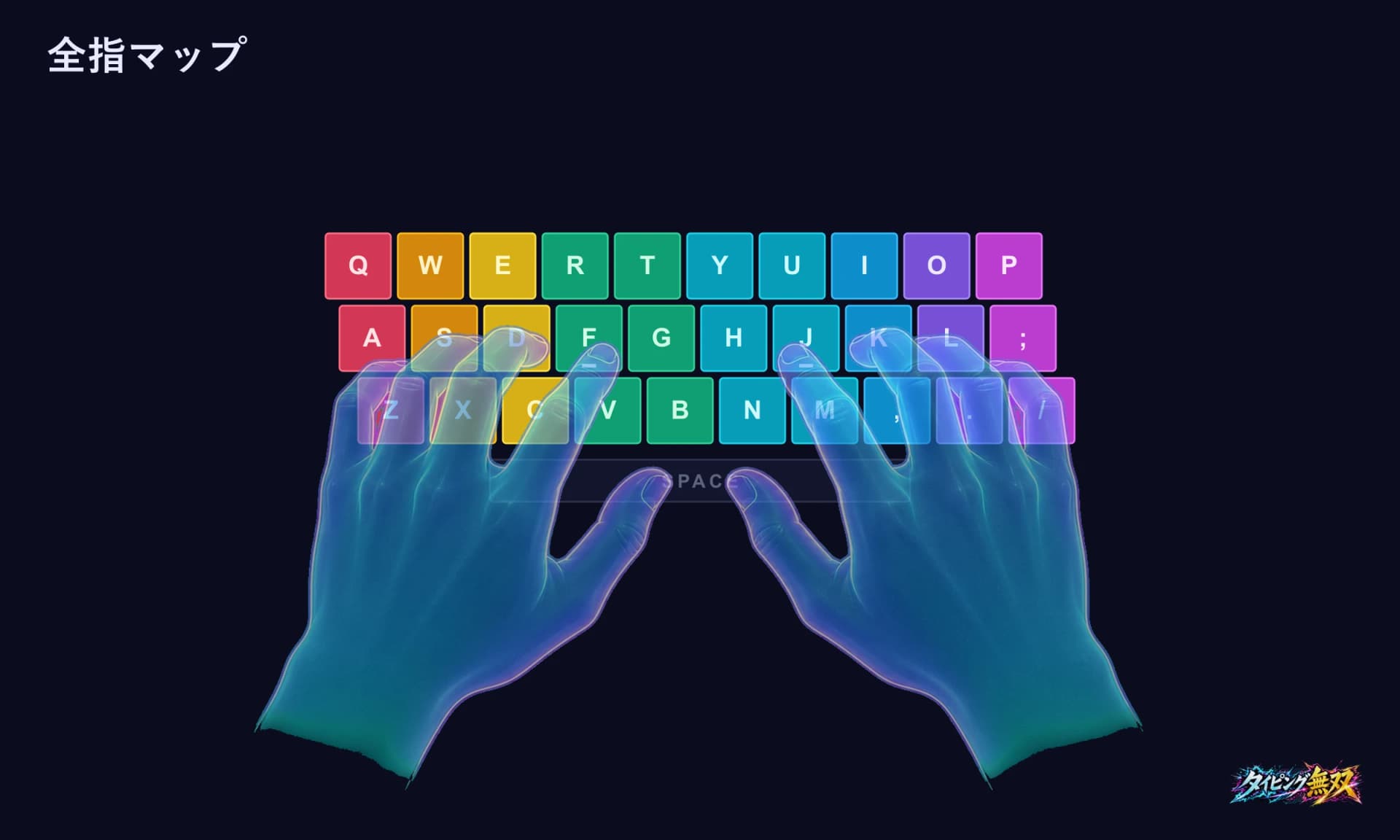
| Finger | Keys it covers | Home key |
|---|---|---|
| Left pinky | Q · A · Z | A |
| Left ring | W · S · X | S |
| Left middle | E · D · C | D |
| Left index | R · T · F · G · V · B | F (bump) |
| Right index | Y · U · H · J · N · M | J (bump) |
| Right middle | I · K · , | K |
| Right ring | O · L · . | L |
| Right pinky | P · ; · / | ; |
| Thumbs | Space | Near side of the Space bar |
The ; and / keys are rarely used when typing Japanese in romaji. Typing Musou accepts only letters, digits, and , . -. The right pinky mostly types P, and the - key (right of 0), which stands for the long-vowel mark “ー”.
All 14 figures from this article (full map, F/J bumps, each finger, thumbs, row by row) in one PDF. Free to use for printing, class slides, and so on. Redistribution is fine.
Download all 14 figures (PDF)ANCHORS
What are the bumps on F and J for?
The F and J keys have small bumps you can feel with your fingertips. They let you return both index fingers to home position without looking. Most keyboards have them. Try it now: check whether your index fingertips can feel the bumps on your own keyboard.
Once your index fingers are on F and J, the position of every other finger follows. Figure 2 draws a short line under F and J to show where the bumps are.
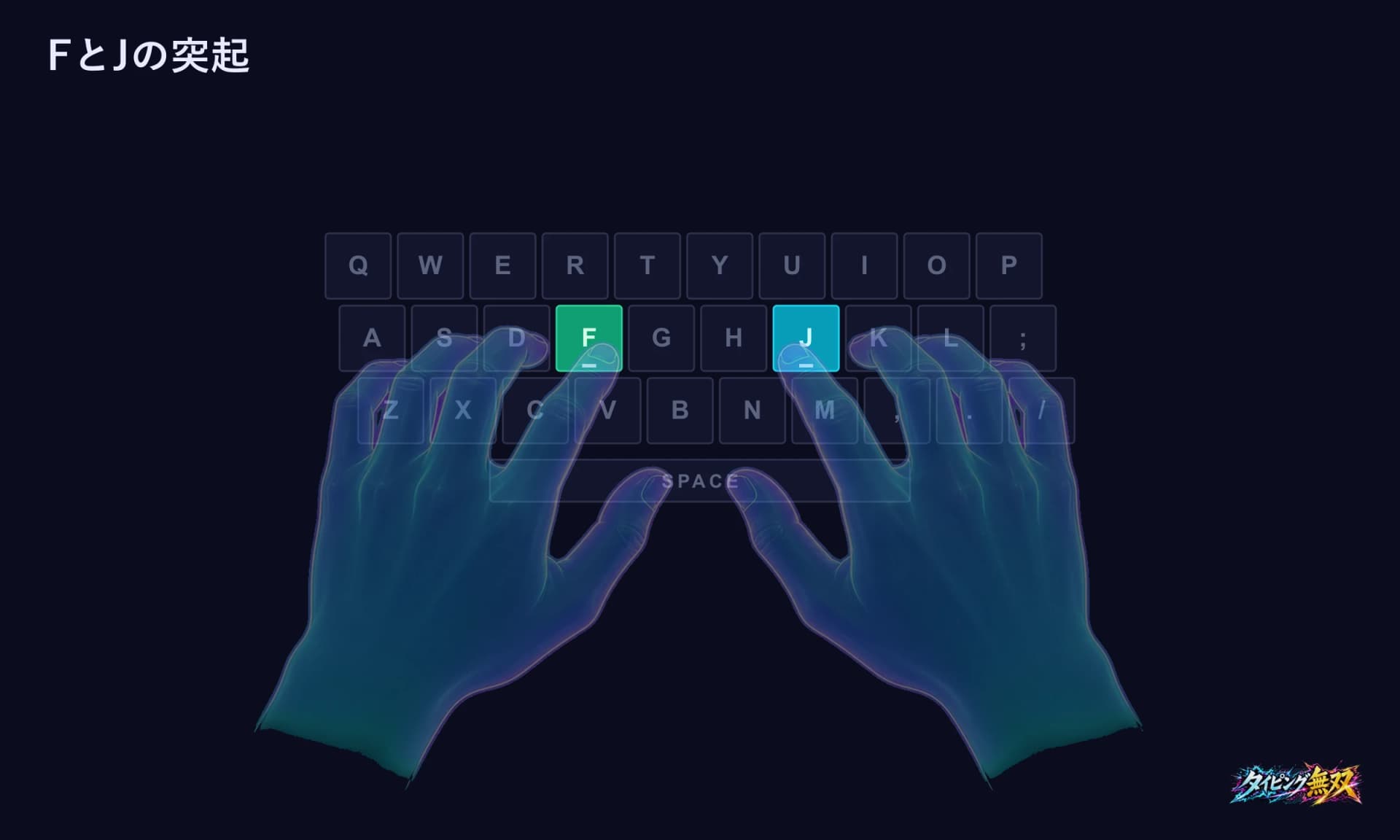
Touch the bumps with your index fingers before you start and whenever your hands feel lost. A university information-literacy handout teaches the same first step: find the marks on F and J by feel to place your index fingers.
NO BUMPS
How do you find F and J without bumps?
Some keyboards have bumps you cannot find or barely feel. Use one of these methods to locate F and J.
1. Count from your thumbs
Put your thumbs on the Space bar. The row one step up is the bottom letter row (Z X C V B N M), and the row above that is the home row.
2. Count from A
The home row reads A S D F G H J K L from the left. F is the fourth key from A, and J is the seventh.
3. Add a marker
You can stick a small bump sticker, or a small piece of tape, on the F and J keys. It only needs to be thick enough to feel with your fingertip. On a shared computer, check that it is allowed first.
4. Looking is fine at first
On the first stage of the dojo, the master says, “For now, you may look at your hands.” Early on, while you learn the positions, checking by eye is fine. Typing without looking comes later.
LEFT HAND
Left hand: each finger's keys
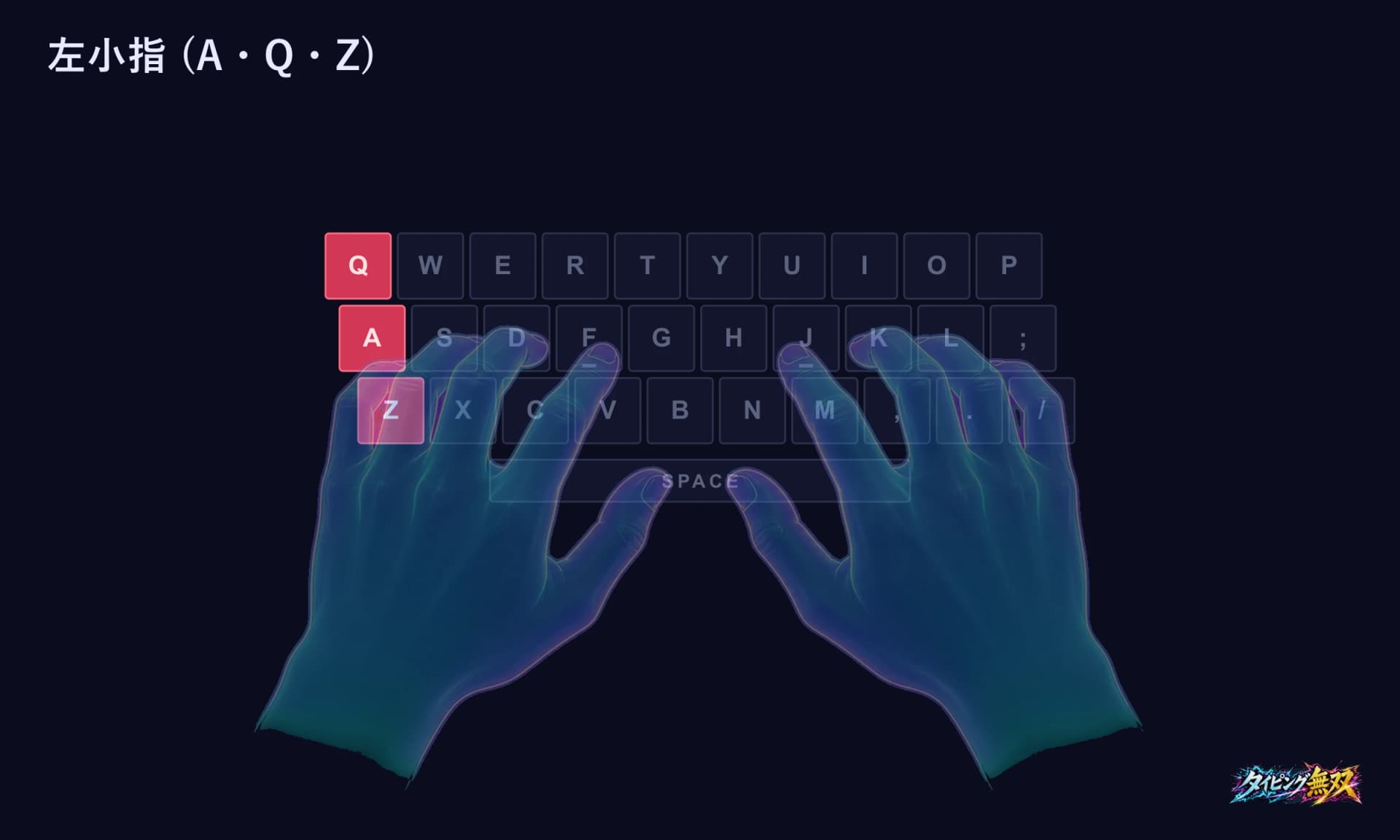
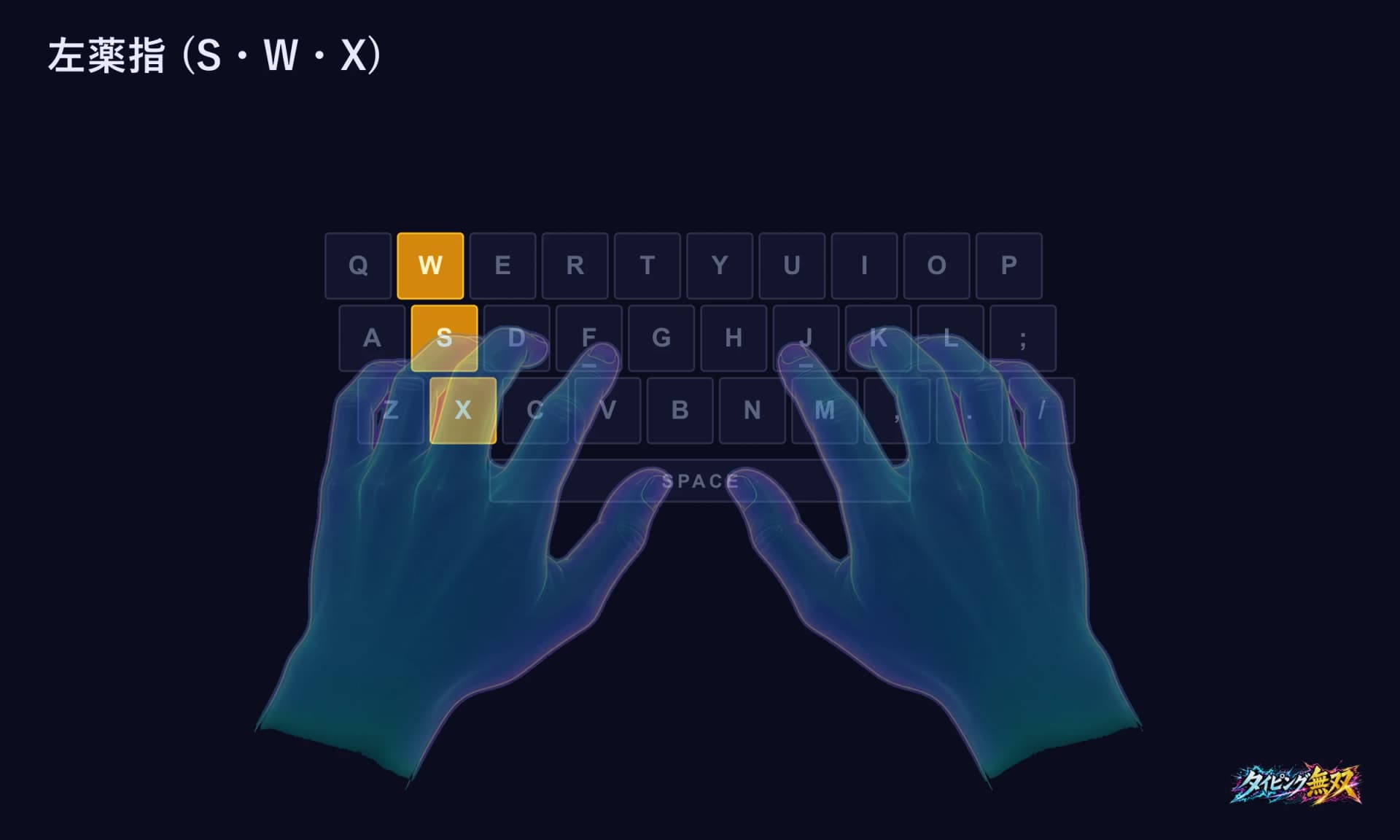
In each figure, the highlighted keys belong to that one finger. Move only that finger, and return it to home when you finish the key.
Left pinky (A · Q · Z)
The outermost finger. From A it reaches up to Q and down to Z, then returns. In standard fingering, the left pinky also presses the left Shift key.
Left ring (S · W · X)
The ring finger is hard to move separately from its neighbors. In a study of 10 people who moved one finger at a time, the ring finger was the least independent (Häger-Ross & Schieber, 2000). Feeling that it cannot reach is natural. Do not let the middle finger cover for it; practice reaching with the ring finger. More in Why Your Ring & Pinky Fingers Won't Move.
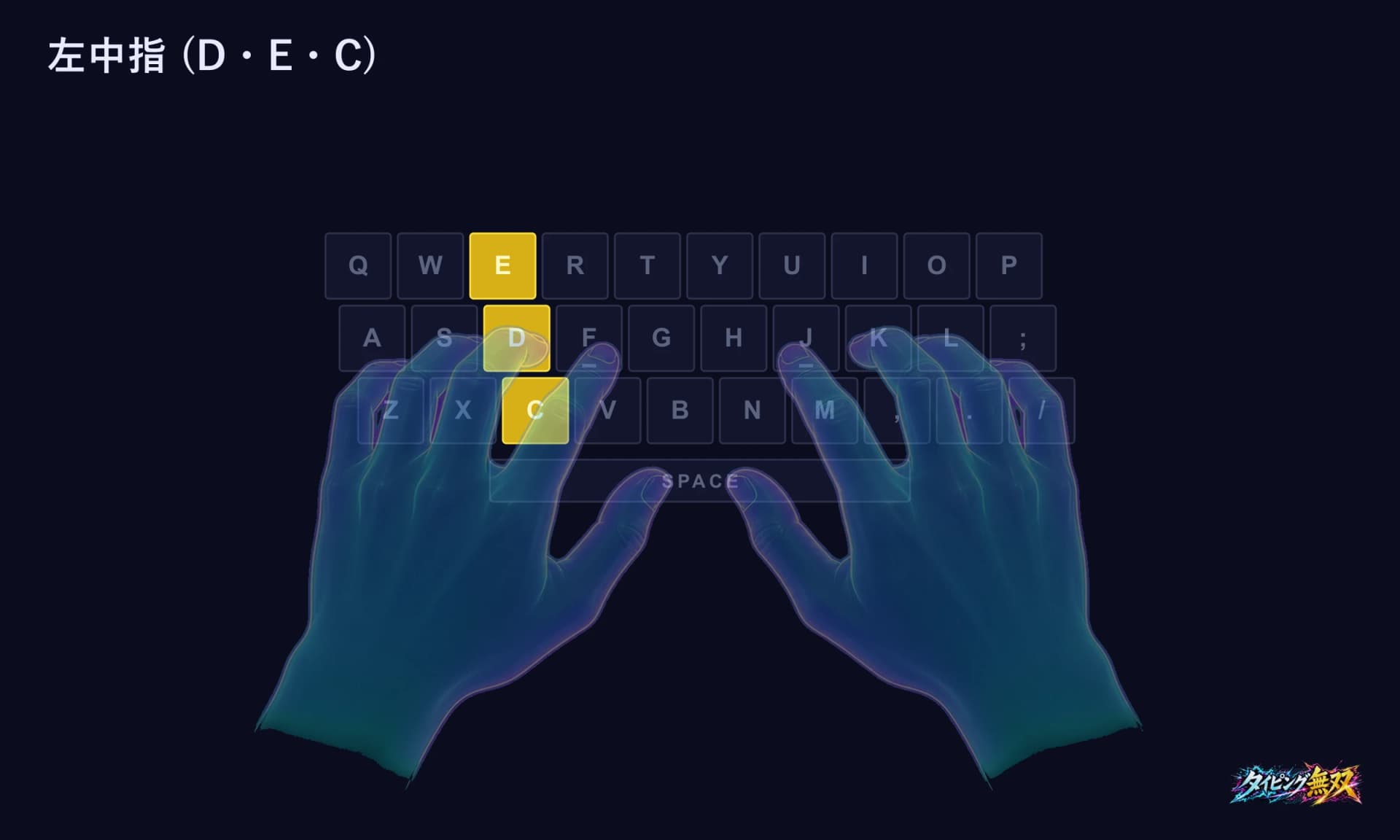
Left middle (D · E · C)
From D it reaches E (up) and C (down). The basic rule is not to reach into a neighbor's keys (the S side or the F side).
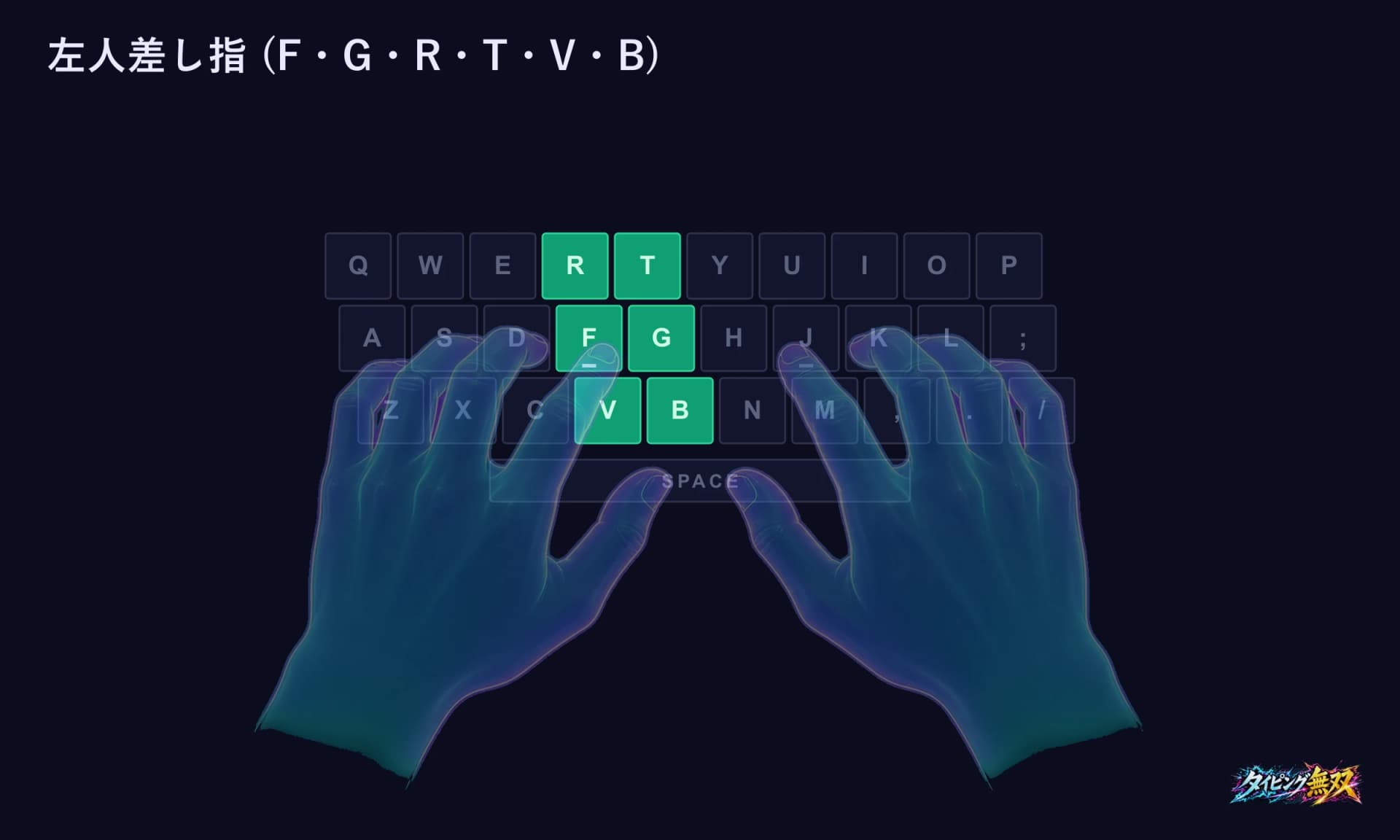
Left index (F · G · R · T · V · B)
This finger has the most keys: six, in two columns. It covers the F-R-V column and the G-T-B column beside it. After G, T, or B, it returns to the bump on F.
RIGHT HAND
Right hand: each finger's keys
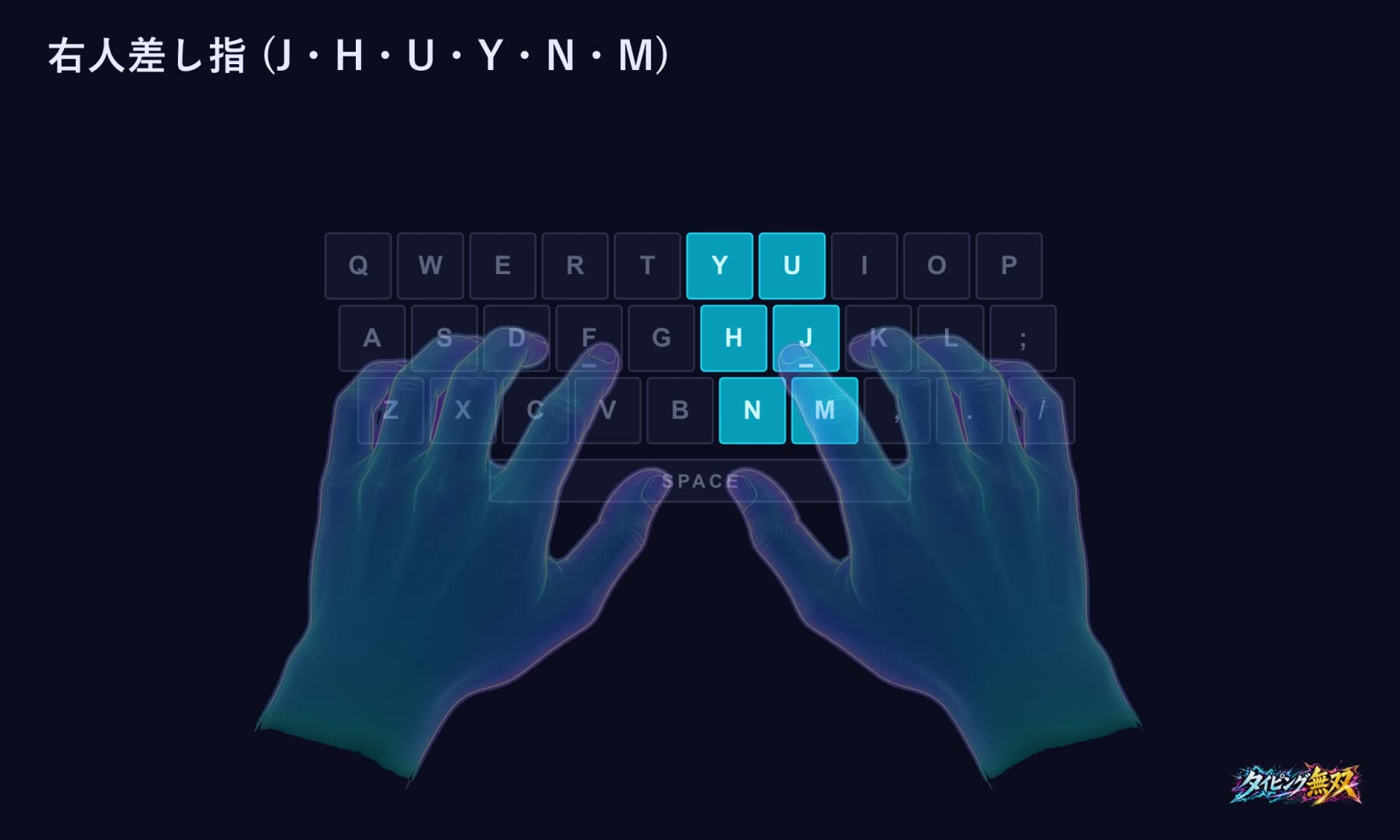
The right hand follows the same idea. The right index finger works from J, covering the J-U-M column and the H-Y-N column to its left.
Right index (J · H · U · Y · N · M)
Like the left index, it covers two columns. After reaching sideways from J to H or N, it returns to the bump on J.
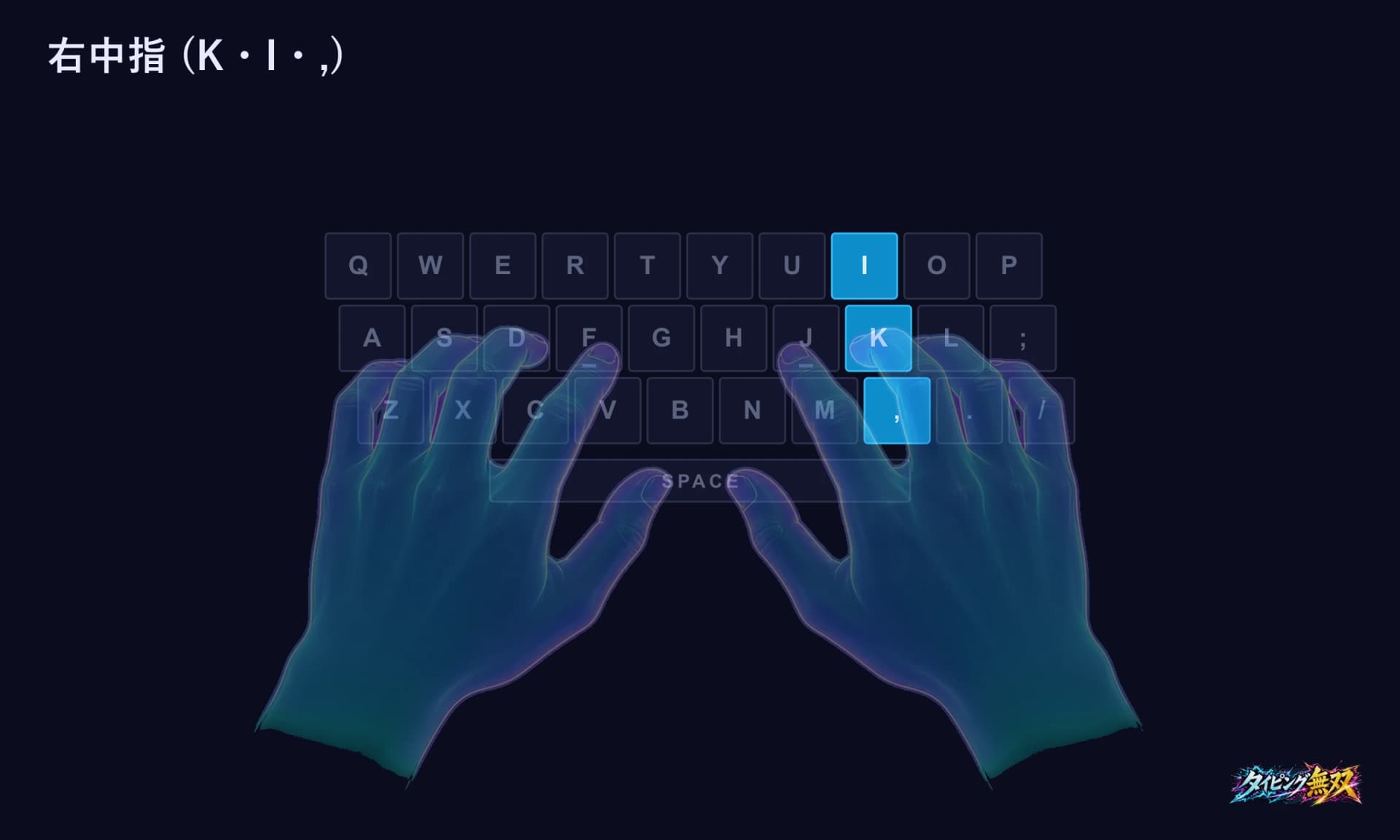
Right middle (K · I · ,)
From K it reaches I (up) and , (down). The comma key also types the Japanese comma “、”.
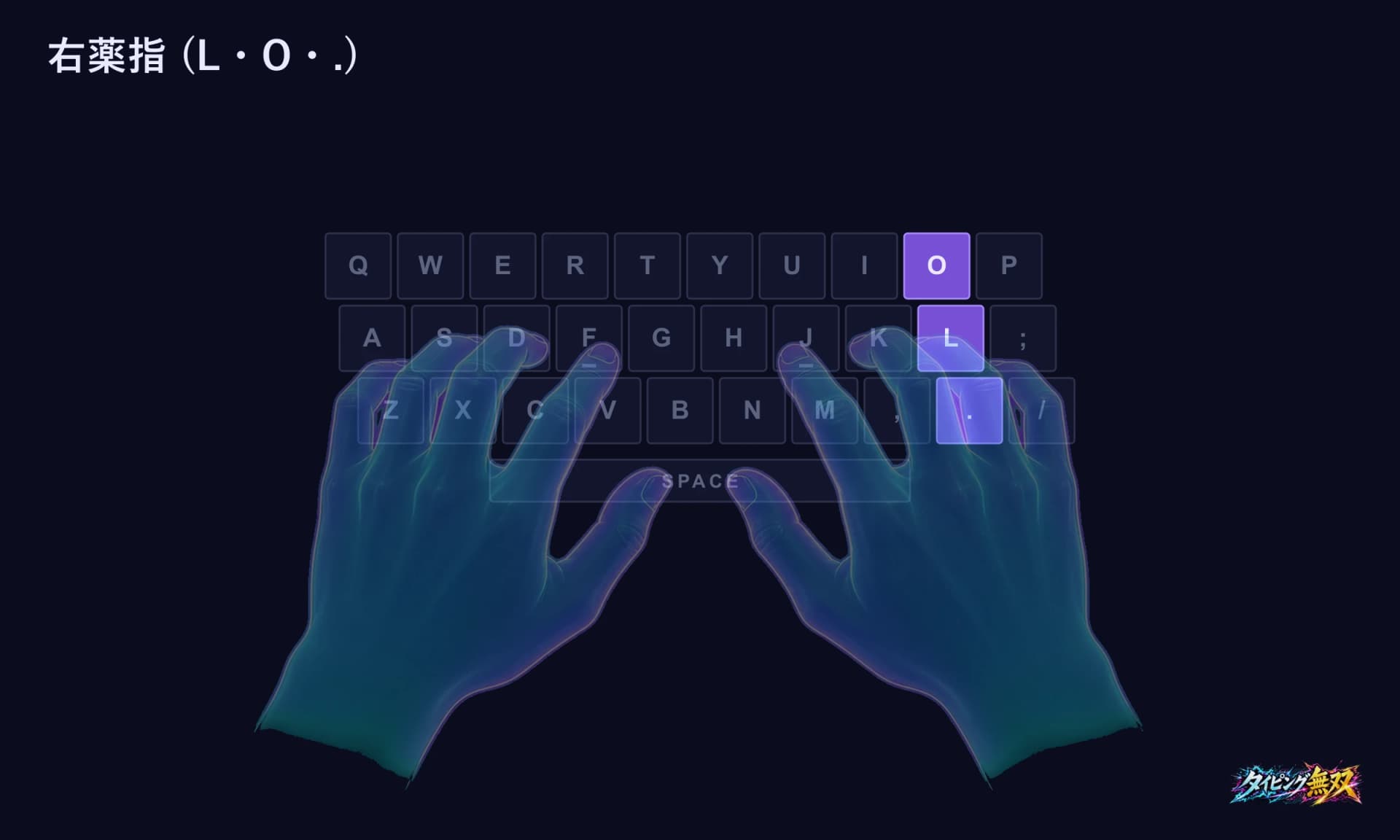
Right ring (L · O · .)
O is one of the five vowels and shows up in many words when typing romaji. The ring finger makes the L-to-O reach and returns. It is as hard to move independently as the left one. The period key types the Japanese full stop “。”.
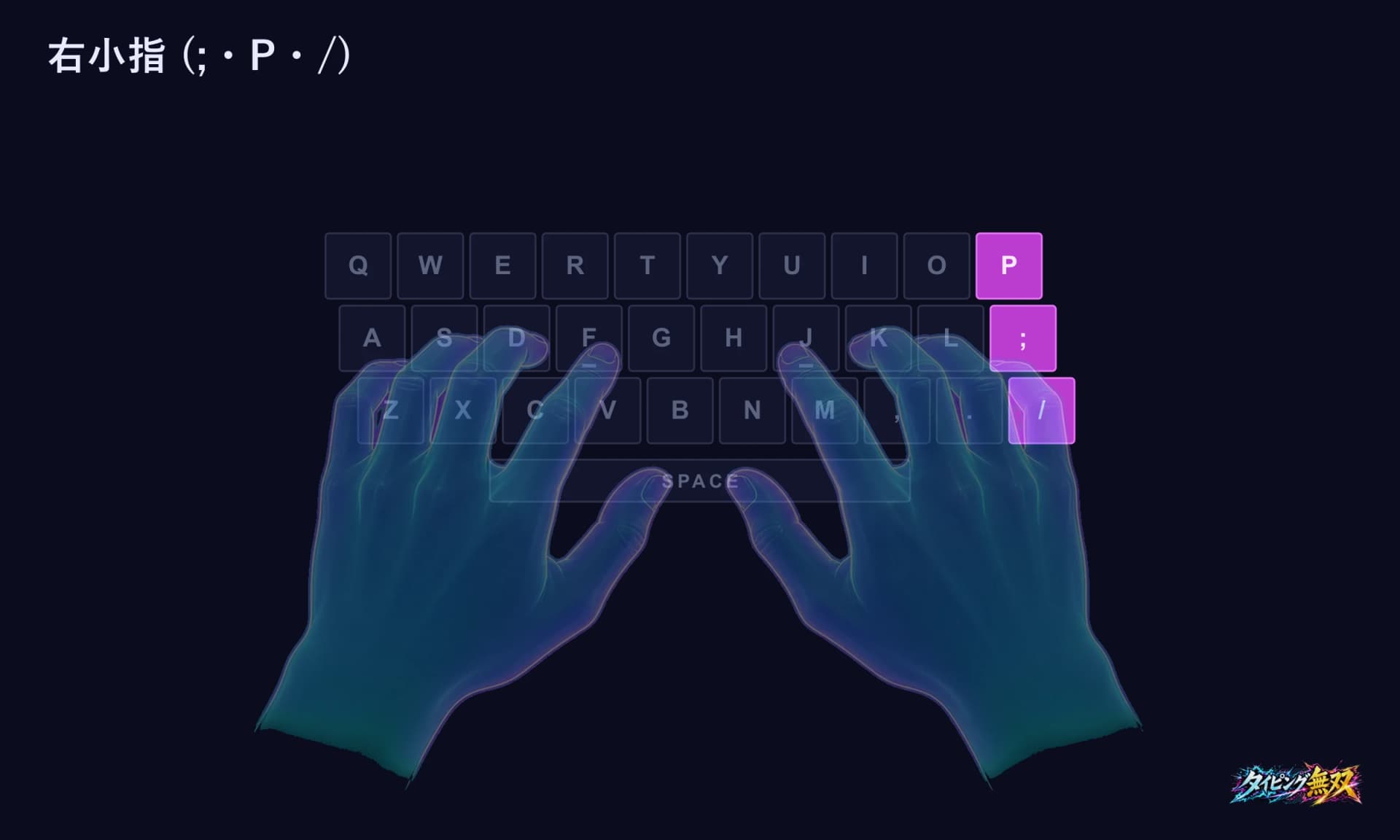
Right pinky (; · P · /)
At the edge of the hand, it handles P in romaji typing. The ; and / keys are rarely used for Japanese romaji. If P is hard to reach, keep your shoulder still, shift your hand slightly right from the wrist, press, and return.
THUMB
What do thumbs do? Can you skip them?
The thumbs handle the Space bar. When typing Japanese, Space also converts kana to kanji (in Microsoft Japanese IME, the first press of Space converts what you typed). Many JIS keyboards also put keys such as Muhenkan and Henkan on both sides of Space, within thumb reach. US keyboards do not have them.
Rest both thumbs lightly on the near side of the Space bar (the side closest to you). A university handout advises not pressing down hard. Its reasoning is that thumbs near Space give you a reference point for the other fingers. That is the handout's view, not a research result.
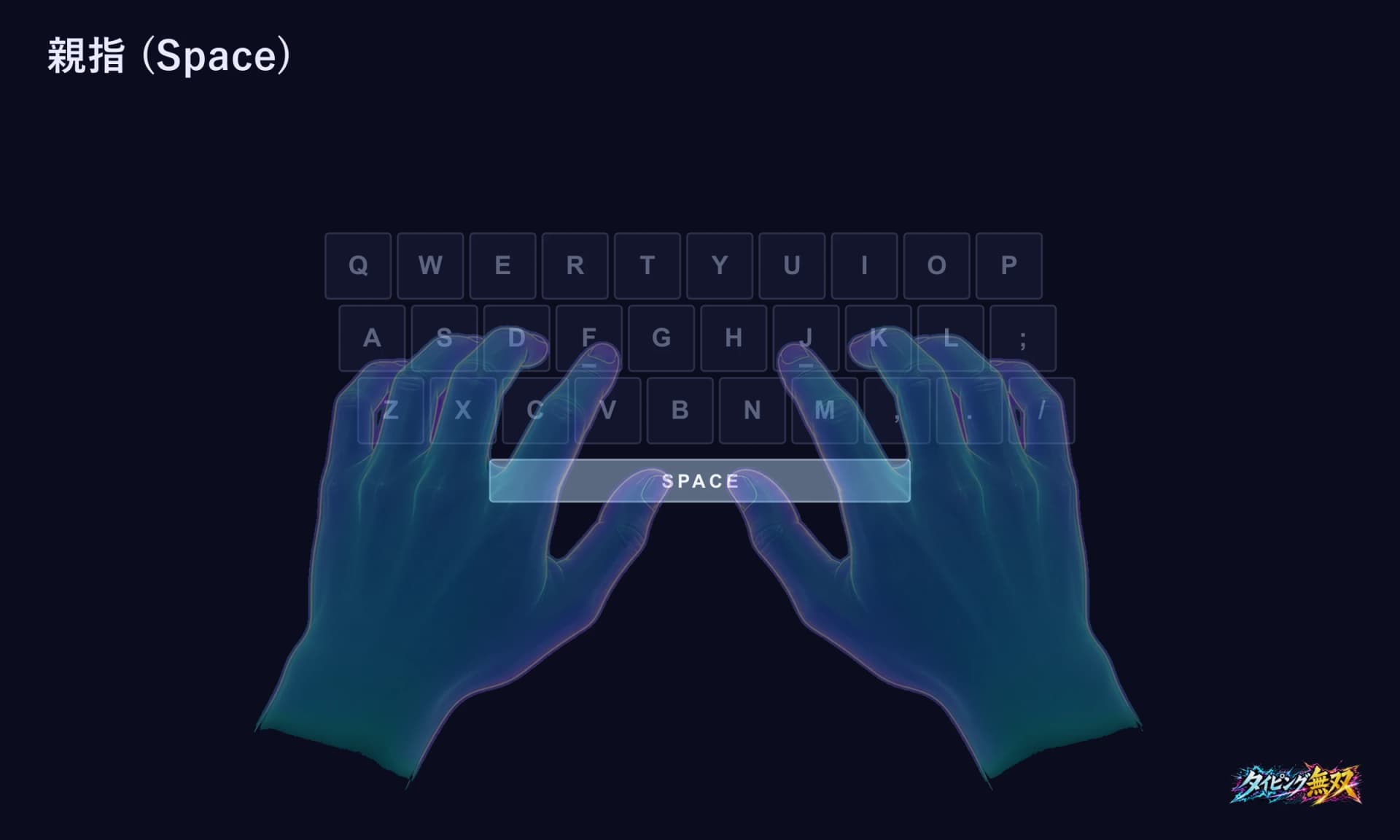
As far as we could confirm, no standard or study says which thumb should press Space. Choose the side that feels natural and keep using it.
Some people press Space with another finger. We could not find research on how that affects speed or fatigue. If you are learning from scratch, deciding that Space is a thumb job keeps things simple.
Typing Musou does not check which finger you used; it only sees the key. In the game, Space is not a typing key. It starts a Speed Trial and fires ultimate skills in battle.
ROWS
Moving across the home, top, and bottom rows
Fingers move less than they look. Three figures show the movement for each row.
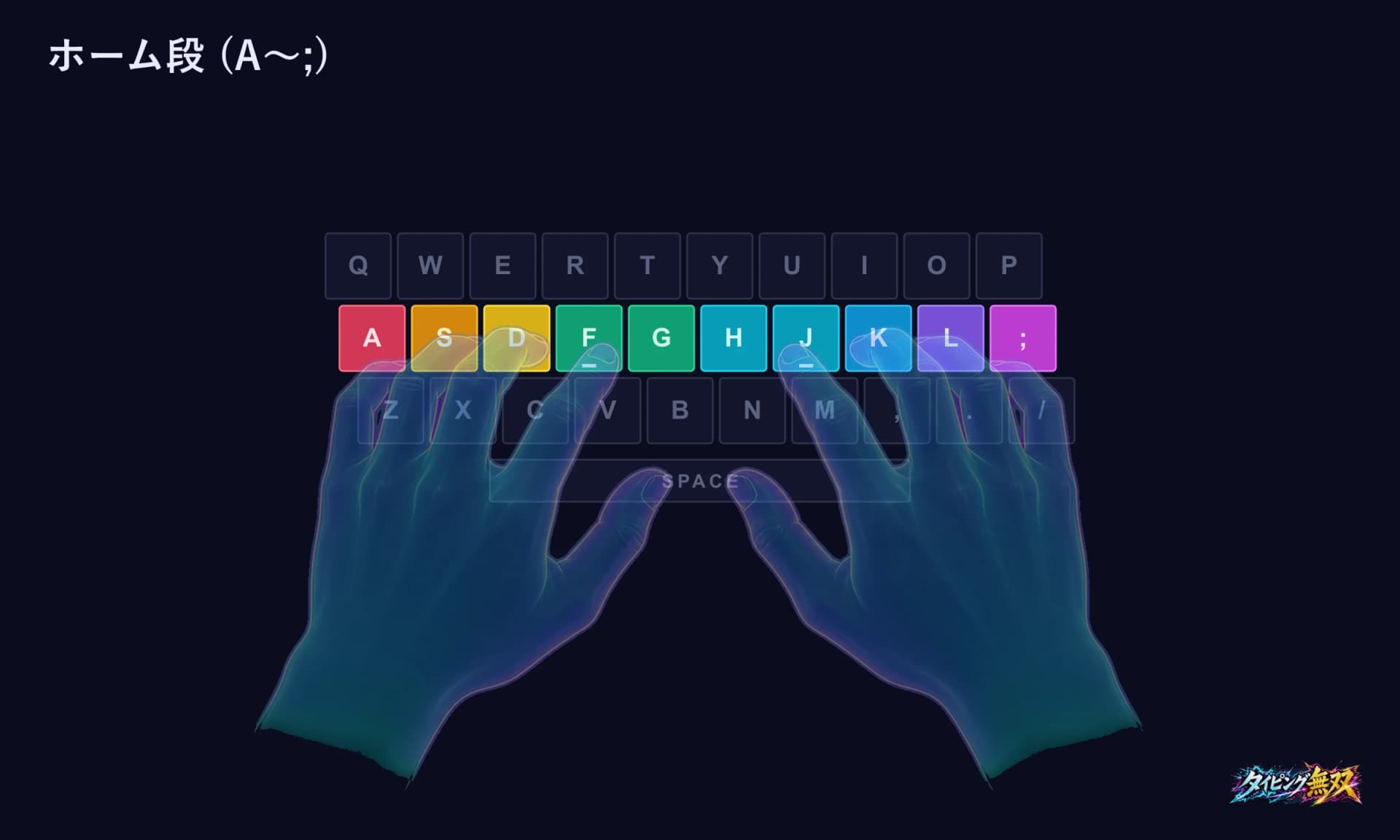
Home row (A to ;)
You can type this row without moving any finger up or down. Chapter 1 of the dojo uses only A S D F G H J K L from this row. The right pinky rests on ; and does not type yet.
Top row (Q to P)
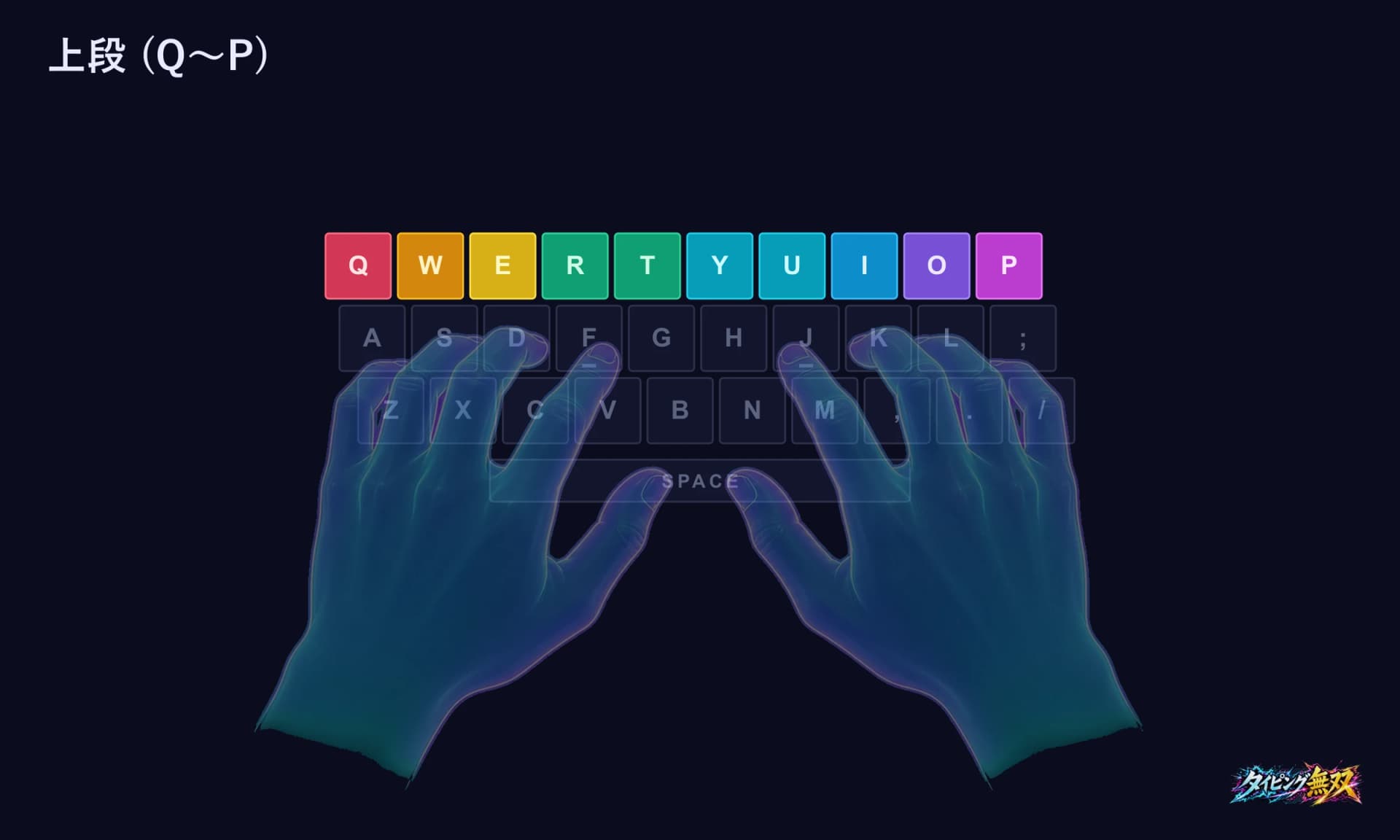
Each finger reaches one row up from home. Reach with the finger instead of moving the whole wrist. When an index finger reaches a key in the next column over (such as T or Y), your hand may move a little. Return after each key.
Bottom row (Z to /)
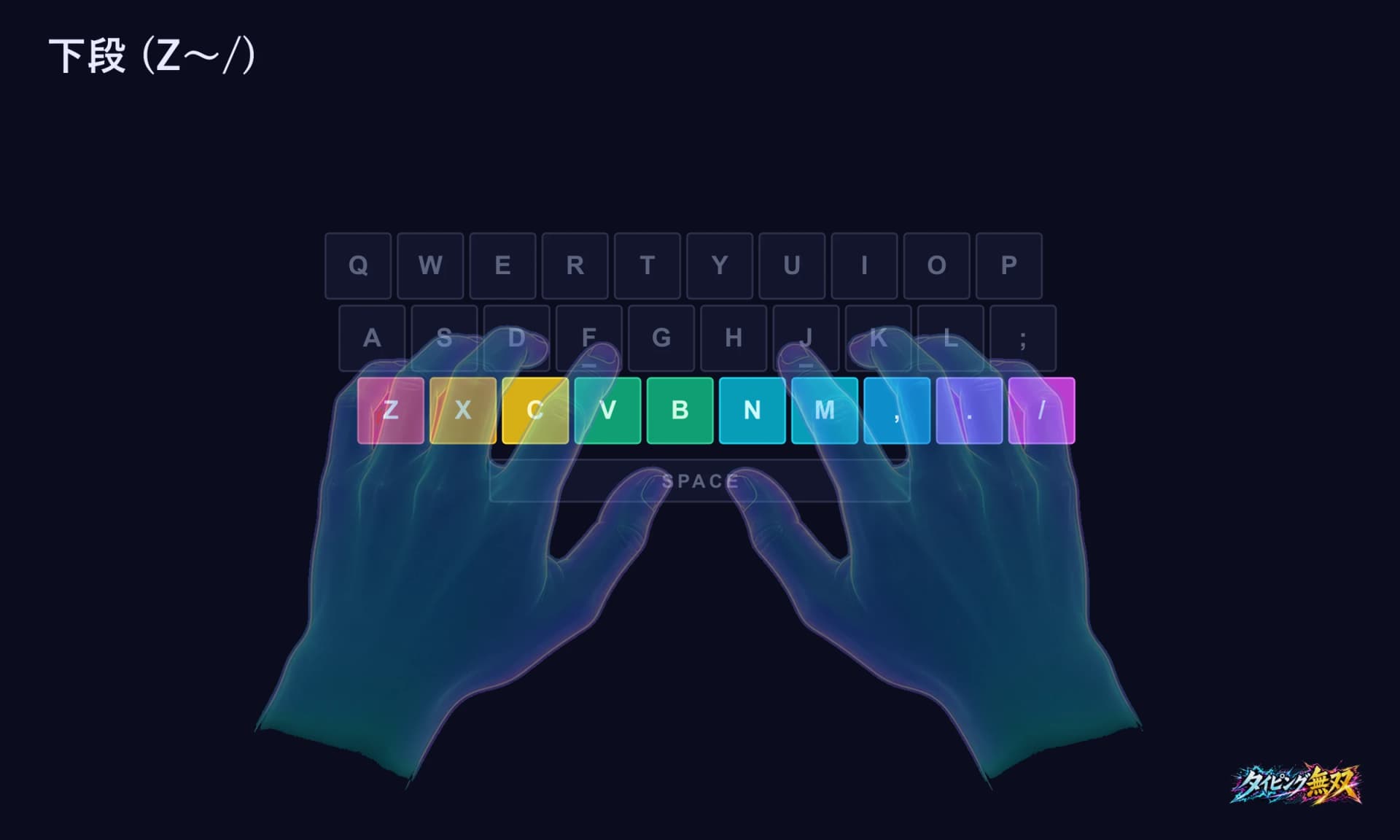
Each finger curls one row down from home. Do not lower the whole palm; think of folding the fingertip toward you. It is harder to see than the top row and feels unfamiliar at first.
DRIFT
Why do my hands drift while typing?
You notice that your index fingers have wandered off F and J. It is a common problem. Below, what research shows is kept apart from the developer's own view.
A study that measured the movements of 30 people (Feit et al., 2016) found that faster typists moved their hands less overall and slower typists moved them more. It also found that people who always pressed the same key with the same finger were faster. Both are relationships the researchers observed; they do not prove that keeping your hands still makes you faster.
The developer thinks drifting comes from these four things. None of them has been tested in research.
Fingers are not returning after each key
Even with the right finger, moving straight on to the next key lets your position slip little by little. The dojo master teaches “go out, come back.”
Thumbs have left the Space bar
Keeping your thumbs near Space gives you a reference point (this is the university handout's explanation).
Moving the whole hand to hunt for keys
When a key's position is vague, people tend to move the whole hand to find it. First make each finger's job clear.
Keyboard is not in front of you
A keyboard placed at an angle or off to the side turns your hands at an angle too. Place it in front of your body and check.
When you notice drifting, stop for a moment. Return your index fingers to the bumps on F and J, put your thumbs back near Space, and continue. The dojo practices returning after every key in Chapter 1 (Stage 7, titled 八指の構え, “Eight-Finger Stance”).
LAPTOP
Is a laptop keyboard the same?
Yes. The letter keys and each finger's job are the same on a laptop and on a desktop keyboard, and the dojo works with a laptop keyboard. These things differ.
Often no numeric keypad
Laptops and compact keyboards often lack a numeric keypad. You type digits on the row above the letters. More in Typing Numbers and Symbols.
A place for your wrists at the front
The front surface of the body invites you to rest your wrists. The commentary to the Ministry of Health, Labour and Welfare guideline says that without a support for arms or wrists during keying, shoulder stiffness and pain are said to increase. Still, hard, sharp edges can affect the forearms and wrists (US OSHA), so watch how your wrists meet the edge.
An external keyboard for long sessions
The Ministry's guideline says that for long work on a small laptop, an external keyboard is preferable. For short practice, the built-in keyboard is fine.
Screen height
The top of the screen should be about level with your eyes or slightly below (Ministry guideline). A laptop's screen and keyboard are one piece, so a stand is one way to raise the screen. If you use a stand, pair it with an external keyboard.
POSTURE
What should I watch in my posture?
The numbers follow the Ministry of Health, Labour and Welfare's guideline on occupational health management for information-device work. For details and break guidance, see Typing Posture and Wrist Position and When Typing Tires or Hurts Your Wrists and Arms.
Chair height
Set it so the angle between upper arm and forearm is 90 degrees or more and your hands reach the keyboard naturally.
Distance to the screen
A viewing distance of roughly 40 cm or more is the guide. The top of the screen should be about level with your eyes or slightly below.
Wrists
Keep your hands, wrists, and forearms straight and roughly in line (OSHA). Official guidance does not say whether to float your wrists or rest them on the desk. I think it is better to avoid pressing them down so hard they cannot move.
Japan's Ministry of Education guidebook says there is no single correct posture, and what matters is not working for long periods in a strained one. Set up as shown, then avoid holding the same posture too long.
PITFALLS
What are the common mistakes?
Letting the index finger reach for neighbors' keys
If you press keys with the wrong finger because you can reach them, the same key ends up pressed by many fingers. In the study above, people who always used the same finger for the same key were faster. The same paper also noted that of 13 people who said they had learned touch typing, only 3 typed exactly as that system teaches. Having learned it does not guarantee following it.
Pressing your wrists into the desk
Pinning your wrists so they cannot move forces you to reach with the fingers alone, and I think the bottom row gets harder to reach (research has not tested this). Resting lightly and pressing down are different things.
Checking the F and J bumps by eye every time
The bumps are for touch. Checking by eye keeps your gaze on the keyboard. In the first few days, looking is fine. Once you are used to it, check by touch and return.
WHERE TO PRACTICE
Where can I practice? The Home Position Dojo
This section introduces the Home Position Dojo in Typing Musou (written by its developer). It has 150 stages in 15 chapters, is free, needs no login, and runs in your browser. A master guides you while adding a few keys at a time. You need a computer (or a tablet with a physical keyboard); it does not run on phones.
The on-screen keyboard is color-coded by finger. The next key glows, and the finger's name appears under it. F and J carry a short line that stands for the bump.
| Chapter (stages) | What it covers |
|---|---|
| Chapter 1 (1–10) | Adds keys in this order: F and J, D and K, S and L, A, then G and H. Ends with a sandbag fight (an opponent that does not hit back) |
| Chapter 2 (11–20) | Vowels U I E O, the ka and sa rows, the ha and da rows. Ends with the Samurai (5 WPM) |
| Chapters 3–4 (21–40) | T R W (the ta and ra rows, and wa), N M (the na and ma rows, and “n”). Ninja (8 WPM), Busou (10 WPM) |
| Chapters 5–7 (41–70) | Y with contracted sounds and long vowels; Z B P with voiced, semi-voiced, and doubled sounds; the remaining keys and punctuation |
| Chapters 8–9 (71–90) | Words, then short sentences |
| Chapter 10 (91–100) | The road to the final exam. Stage 100 is the Gatekeeper (WPM 30, 85% accuracy); beating him earns a title |
| Chapters 11–15 (101–150) | The usual stumbling points (small ya/yu/yo, voiced-sound marks, small tsu and n, same finger, boundaries between kana). Stage 150 is the Shihan (WPM 40, 90% accuracy); beating him earns the title “Assistant Master” |
Later stages 107, 108, 118, 128, 138, and 148 are “type without looking” stages: they hide the keyboard guide and the romaji you have not typed yet, so you recall the spelling from the kana.
FAQ
FAQ
Q. Can people type fast without returning to home position?
Yes. In a study of 30 people (Feit et al., 2016), some people who had never learned touch typing exceeded 70 words per minute. They did spend more time looking at the keyboard, though (about 40% of the time versus about 20% for people who had learned it). If you want to keep your eyes on the screen, home position is the base. Whether you should learn it is covered in Is Touch Typing Necessary?.
Q. Is home position different on JIS and US layouts?
Letter keys sit in the same places, so home position is the same. What differs is the position of symbols, the shape of Enter, and keys such as Henkan and Muhenkan. For choosing a keyboard, see Choosing a Keyboard for Typing Practice.
Q. Is the ; key under the right pinky used for romaji?
It is rarely used when typing Japanese in romaji. Typing Musou accepts only letters, digits, and , . -. The right pinky mostly types P and the - key for the long-vowel mark “ー”.
Q. How many days does it take to learn home position?
It varies widely, and research does not measure it in days. In an experiment with 72 postal workers, the group averages for learning the whole keyboard were roughly 35 to 50 hours. Details in How to Learn Touch Typing.
SUMMARY
Summary
Home position means index fingers on the bumps of F and J, thumbs near Space, and each finger reaching to its own keys and coming back. Pressing each key with the same finger every time is a trait shared by fast typists.
With no bumps, count from your thumbs, count from A, or add a marker. If your hands drift, put the index fingers back on the bumps and re-place your thumbs. Start with F, J, and your thumbs in the dojo.
SOURCES
Sources
I checked the research figures and wording in this article against the sources below on October 18, 2026. Page numbers are PDF page numbers. The two government documents and the university handout are in Japanese.
- Feit AM, Weir D, Oulasvirta A. (2016) How We Type: Movement Strategies and Performance in Everyday Typing. CHI ’16. — description of touch typing: Introduction; the three factors linked to speed: Discussion; 3 of 13 people: Results
- Häger-Ross C, Schieber MH. Quantifying the independence of human finger movements: comparisons of digits, hands, and movement frequencies. Journal of Neuroscience 20(22): 8542–8550, 2000.
- Baddeley AD, Longman DJA. (1978) The influence of length and frequency of training session on the rate of learning to type. Ergonomics 21(8), 627–635. — hours to learn the whole keyboard: Table 1
- Ministry of Health, Labour and Welfare (Japan), Guideline for Occupational Health Management in Information Device Work (Notification 0712-3, July 12, 2019; partly revised by Notification 1201-7, December 1, 2021), text and commentary — screen distance and height: text p. 9; angles and arm support: commentary p. 24; laptops: text p. 6, commentary p. 24
- Ministry of Education, Culture, Sports, Science and Technology (Japan), Guidebook for Using ICT with Attention to Students' Health (revised March 2022) — “no single correct posture”: Q&A (4), p. 10
- US Occupational Safety and Health Administration, Computer Workstations eTool: Working Positions — position of hands, wrists, and forearms
- US Occupational Safety and Health Administration, Computer Workstations eTool: Keyboards — wrist rest edges
- Microsoft Support, “Microsoft Japanese IME” (in Japanese) — first press of the Space key
- A university information-literacy handout, “6. Keyboard and typing” (in Japanese) — teaching on thumbs and the F/J marks; a teaching view, not a research result
- The dojo chapters, stages, and on-screen keyboard come from Typing Musou's screens and code (as of October 18, 2026)